App Store Keyword Research Tool for Mac
Research App Store keywords on your Mac. Compare available popularity, estimated difficulty, and observed positions for your ASO workflow.
On this page
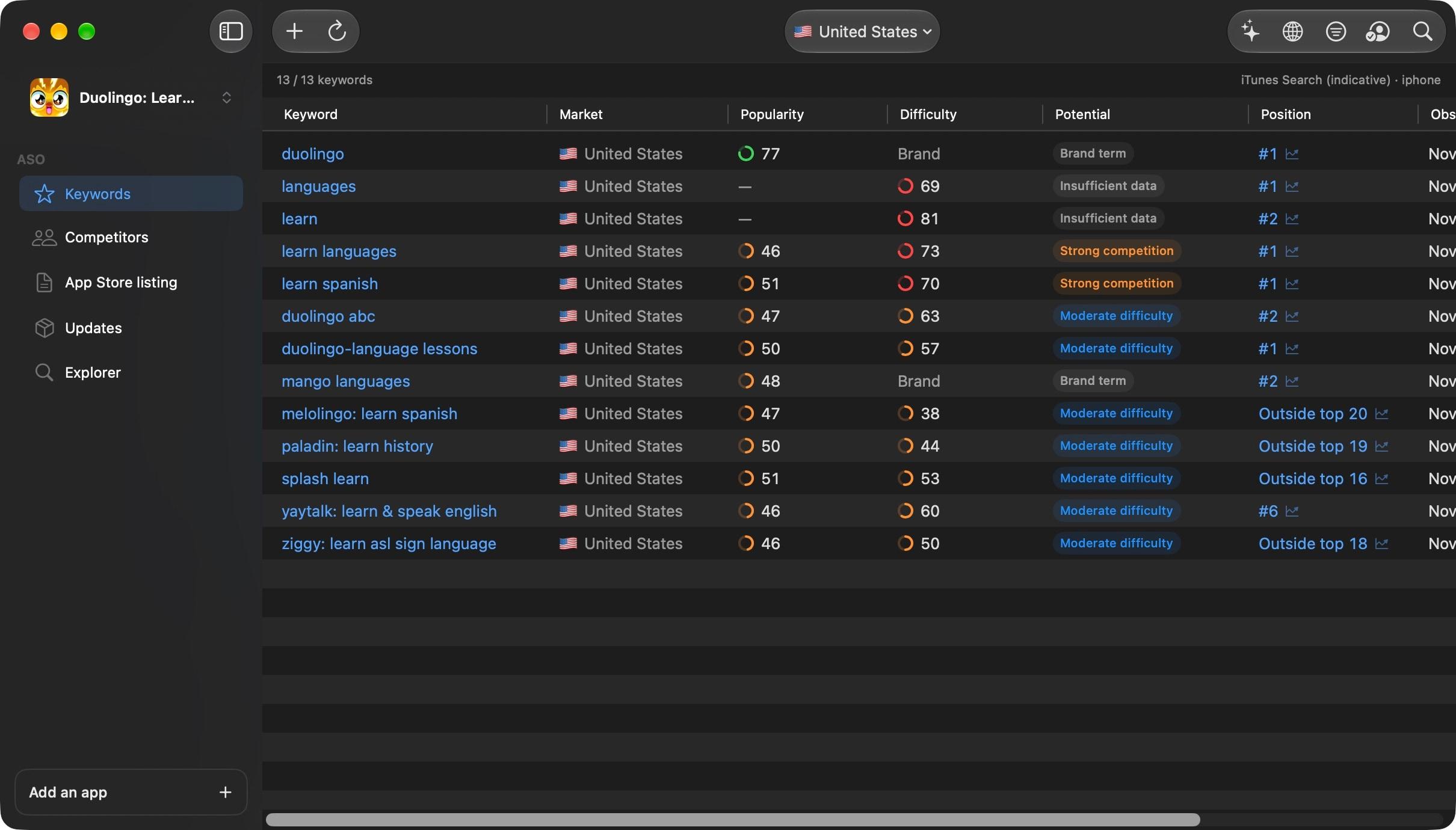
AppHunch’s keyword table puts the term, market, popularity, difficulty, potential, position, and observation date in one view. You can see which signals are present before deciding whether a phrase belongs in your ASO plan.
The Duolingo capture above shows why these columns need different meanings. A branded search, a broad category term, and a phrase without popularity data should not all be judged by the largest number in the row.
Read demand separately from ranking difficulty
Popularity uses available Apple Ads data. Difficulty estimates the competition among leading results. Neither is a count of searches, and one does not fill in the other when a value is missing.
In the United States Duolingo capture, “languages” has no popularity value, difficulty 69 and position #1. That is a recorded ranking worth inspecting; its search demand remains a separate question.
| Signal | How to use it |
|---|---|
| Popularity | Available Apple Ads popularity for the term and market; not an exact search-volume count. |
| Missing popularity | Leave demand undecided when Apple Ads popularity is unavailable. A recorded position does not establish search volume. |
| Estimated difficulty | A top-result assessment using title matches, rating counts, and ratings where enough app data is available. |
| Position and observation date | Where the researched app appeared in that recorded search, and when it was measured. |
Why a brand term does not get an ordinary difficulty score
The “duolingo” row in the capture shows popularity 77 and position #1, but its difficulty is labelled as a brand term. AppHunch detects a brand search when the phrase matches the leading app’s name or publisher, and suspends the ordinary difficulty score.
For other terms, the estimate examines up to ten leading results. Title matches, rating volume, and ratings contribute to the assessment. At least five results need rating-count data; otherwise difficulty is unavailable. This explains why a dash and a brand label are different outcomes.
Open the leading apps to inspect the context behind the score. A phrase can look adjacent to your product while the result page is serving a different task. That is the point at which competitor research becomes useful.
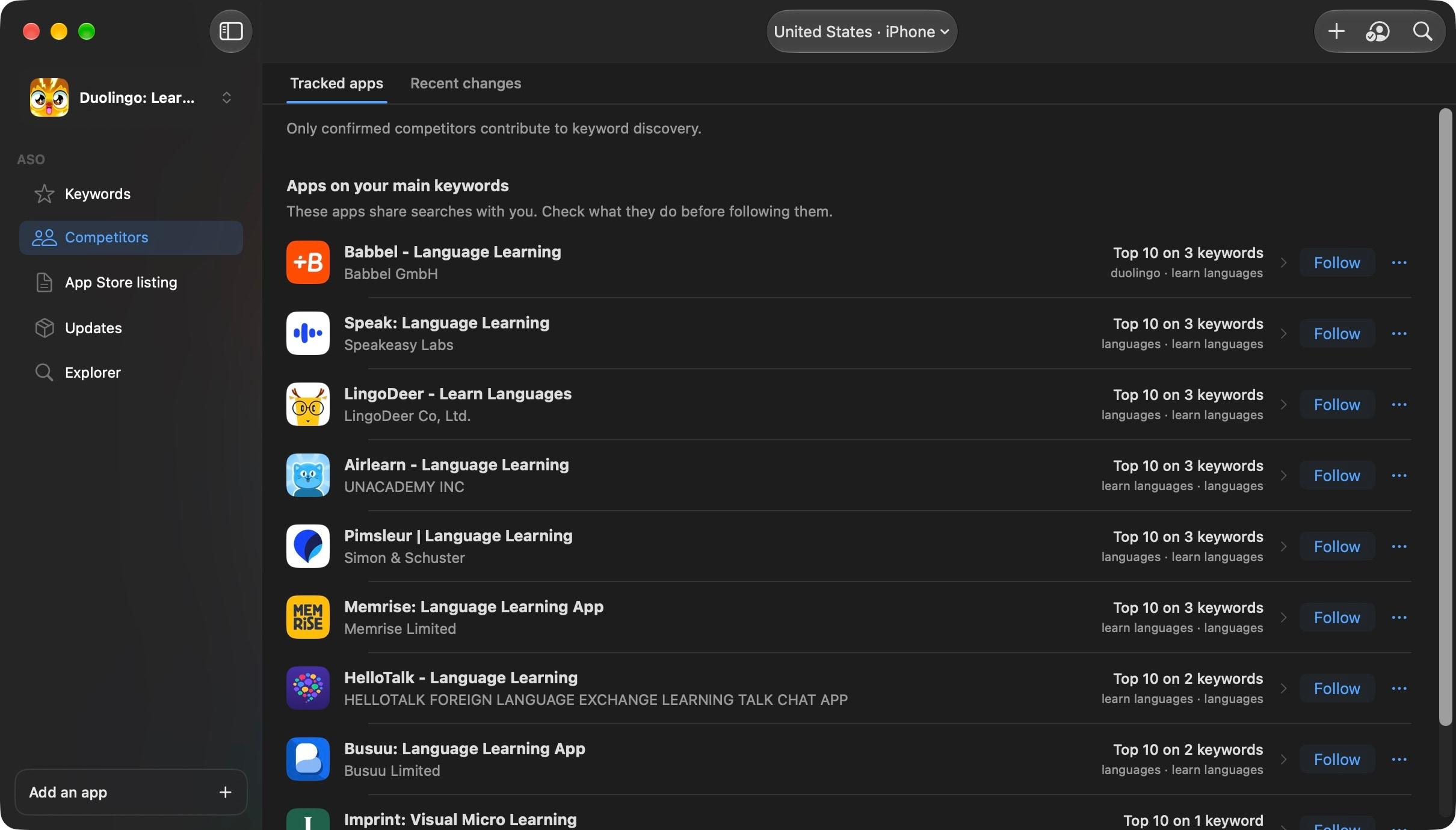
Compare terms in the same market
In this capture, “learn languages” has popularity 46 and difficulty 73, while “learn spanish” has popularity 51 and difficulty 70. The narrower phrase deserves a closer look for a Spanish-learning product. It would be a poor choice for an app that does not teach Spanish.
Keep the country and device context fixed while making that comparison. The screenshot is a United States iPhone research view, with a measurement date on each row. Positions are indicative iTunes Search observations, so compare like-for-like records rather than treating them as universal on-device rankings.
Turn one candidate into a listing decision
After inspecting a term, decide which part of your product it describes. For a notes app, a phrase about reminders is useful only if the product delivers that task clearly enough for a person arriving from the search.
Review the candidate in the relevant localization before changing the title, subtitle, or keyword field. Record the term and the intended edit against the release you plan to follow. Release tracking then gives you a defined before-and-after question instead of a general hope that all rankings improve.
A focused research session
Choose the country and device
Use the same market and device context for the terms you want to compare.
Separate the available signals
Read Apple Ads popularity separately from difficulty; check whether each score is available, estimated, or replaced by a brand label.
Inspect the leading apps
Open a result to check the product positioning and whether the phrase describes your own app.
Follow a specific edit
Choose the relevant localization and keep the term in the release review for the change you prepare.
Questions & answers
Can I research App Store keywords without App Store Connect?
Yes. Public keyword research does not require connecting your App Store Connect account. Your own analytics, sales, and listing changes use a separate connection.
Why is a keyword position available but popularity missing?
A recorded search position and Apple Ads popularity come from different sources. A position can be observed even when popularity is unavailable. Leave demand undecided rather than interpreting a missing popularity score as zero.
Is this a keyword research tool for Mac?
Yes. Keyword research is part of the native AppHunch Mac app, alongside competitor research, localized listings, analytics, and pricing.